
Introducing the new Agenda for Teams #
We’re excited to announce the release of the latest version of Agenda (3.0), a major update packed with new features, an updated user interface, and the option to add Agenda as a Personal App in addition to a Channel Tab App.
Keep reading to learn how to upgrade to the Agenda 3.0 meeting management app for Teams!


To ensure that the Agenda app functions properly, the first step is to grant the necessary admin permissions.
Both Agenda 2.0 and Agenda 3.0 will be available for a transitioning period, allowing users and administrators time to consent to the new permissions and make the transition smooth.
How to Upgrade Your Agenda Tab App #
Step 1: The Teams Administrator provides consent #
It’s recommended that an administrator upgrade the app and grant the required permissions to all users in the Teams Admin Center. The process is as follows:
- Go to Teams Admin, and select “Teams apps” and “Manage apps”
- Search for agenda in the All apps list and click Enable 365 Agenda. (See Screenshot 1)
- Look for an upgrade button at the top and press it. If it’s not available, the update app registration is already available in your Microsoft Tenant.
- Go to the “Permissions” Tab and Grant consent (See Screenshot 1)
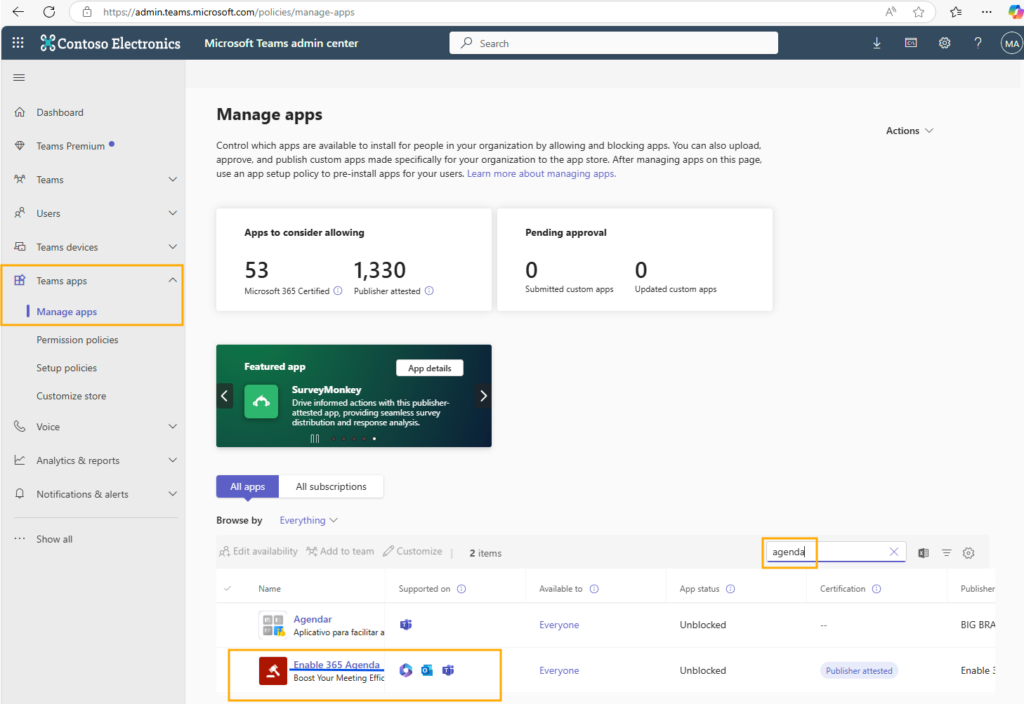

Step 2: Upgrade existing Agenda App instance to 3.0 #
- Click the small arrow next to the Agenda tab in your Microsoft Teams Channel.
- Select ‘Settings’.
- Choose the version of the app you want to use.
- Select the V3 option and save to switch to the new experience.
If you need to revert to 2.0, follow the same steps and select the V2 option. However, we recommend staying with 3.0 once you’ve started using it.
Note: If the Settings button is not visible, you might not have the correct permissions in Microsoft Teams.
Note 2: You might need to click on another tab and then return to Agenda for the changes to take effect.
Alternative (postponed) upgrade path: #
In a few weeks, we will push the upgrade, and this message will appear in the existing Agenda 2.0:

- Remember to inform your IT Administrator to update the consent; refer to Step 1 above.
- Click the “Upgrade” button to switch to the new version automatically.
- If the upgrade doesn’t happen immediately, try refreshing the tab.
Note: You might need to click on another tab and then return to Agenda for the changes to take effect.

How to add Agenda as a Personal App in your Teams #
In addition to the Channel Tab app, you now have the option to add Agenda as a Personal App.
Agenda will then be easily accessible from the left-hand menu in Teams, providing a comprehensive overview of Agenda meetings across different Teams.
Add Agenda as a Personal Teams App
- Go to the Teams App Store and search for “Enable 365 Agenda“
- Click “Add”
- Once the app is added, right-click to pin Agenda to your left-hand sidebar to keep all your meetings under control!


