
Send the agenda to attendees #
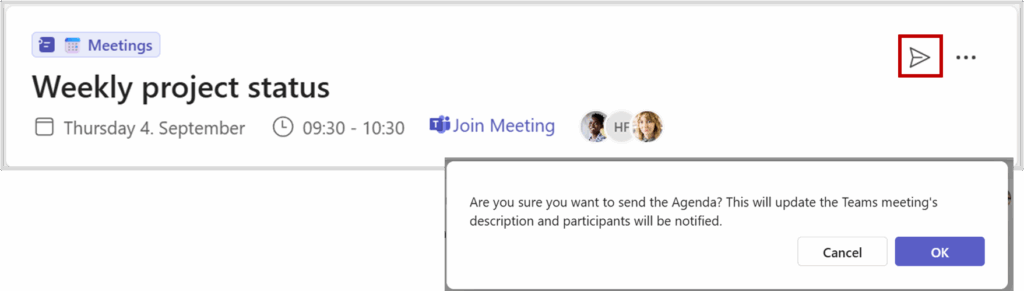
Send the agenda and update the Teams meeting with the agenda items.
If there are any changes to the agenda, resend the updated agenda.
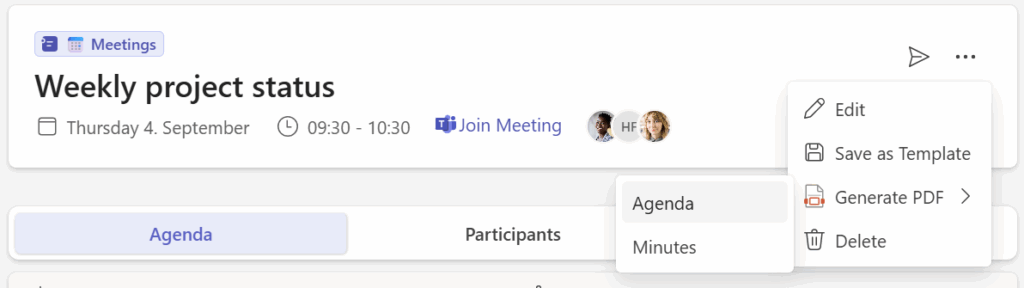
Save the agenda as a PDF-file #
Generate PDF
Select name, location and what to include on the PDF #
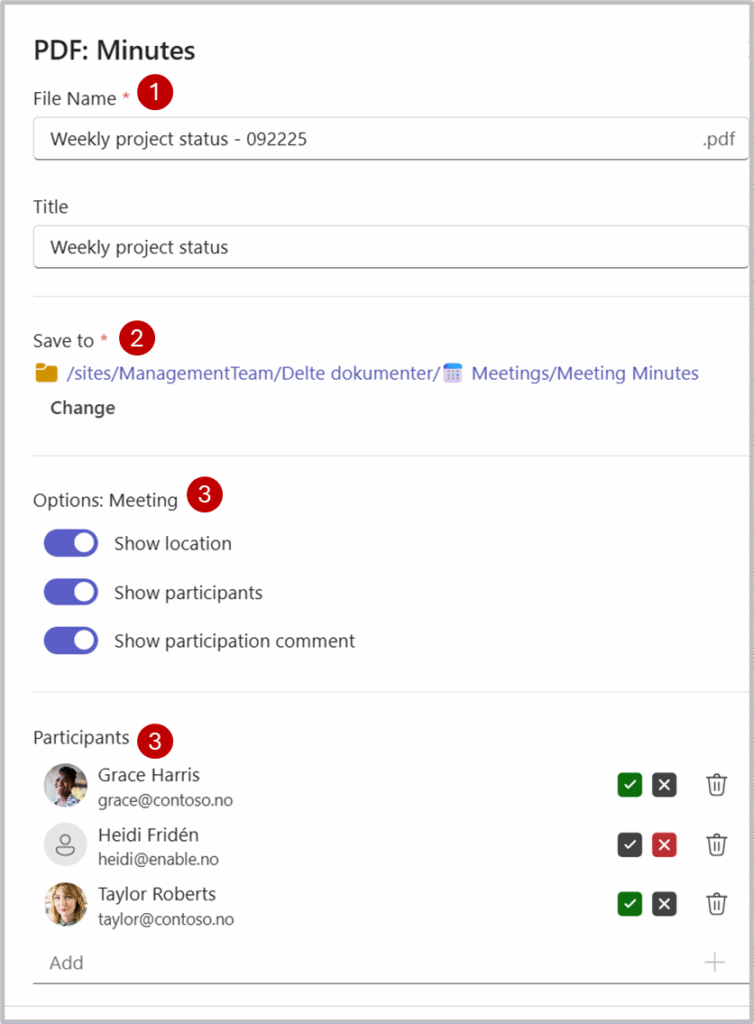
1 – Add a name or use the suggested. Change the title as needed.
2 – Override the Save to location if needed
3 – Select/deselect which meeting options to include
4 – Remove participants you don’t want to include.
TIP! You may include a participant’s name as additional text beneath the current entries.
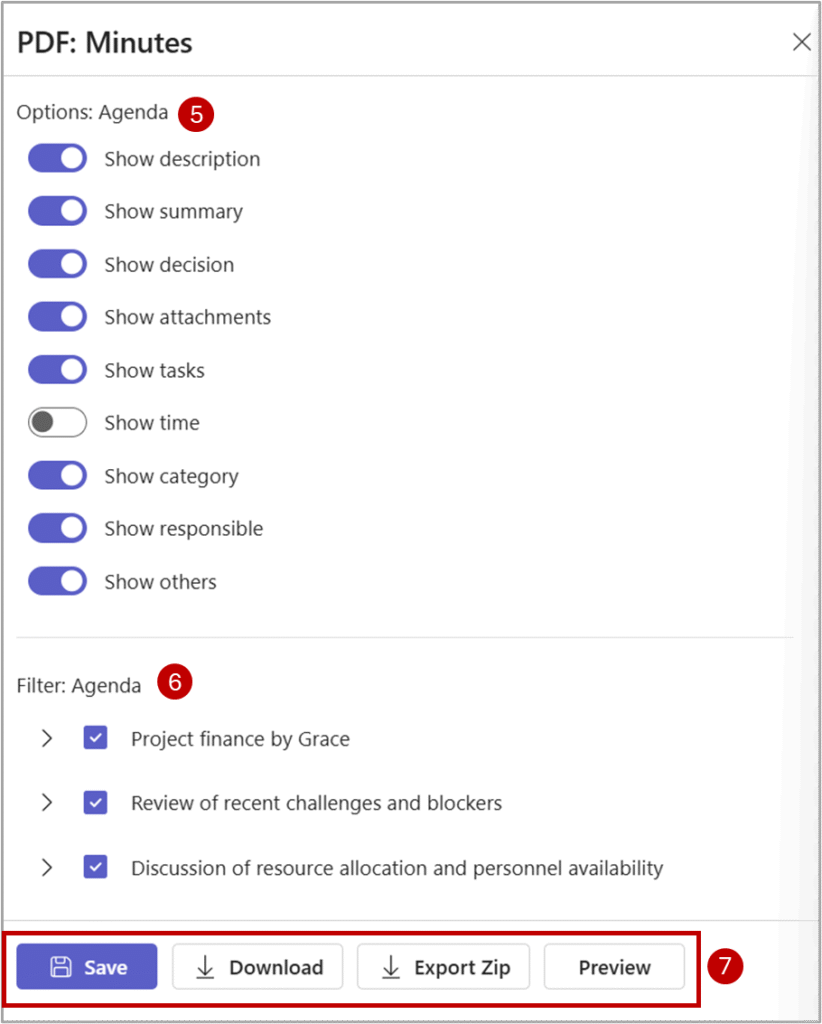
5 – Select the fields and other information connected to the agenda items.
Tasks will be listed separately at the end of the PDF.
6 – Select agenda items and attchments to include.
Save, download or export – Which option should I choose? #
Save: The PDF will be saved to the location you have chosen
Download: The PDF will be downloaded to your default folder for downloads
Export Zip: Choose this options if you need a Quick way to export a copy of the minutes of meeting together with the files uploaded to the meeting.
The meeting minutes PDF and uploaded files will be saved as a Zip file in your downloads folder.


