
For recurring meetings with the same agenda, like project status, management, or board meetings, using templates saves significant planning time.
You can create a template in Agenda either from scratch on the Home page or by saving an existing meeting as a template.
Create a template from scratch #
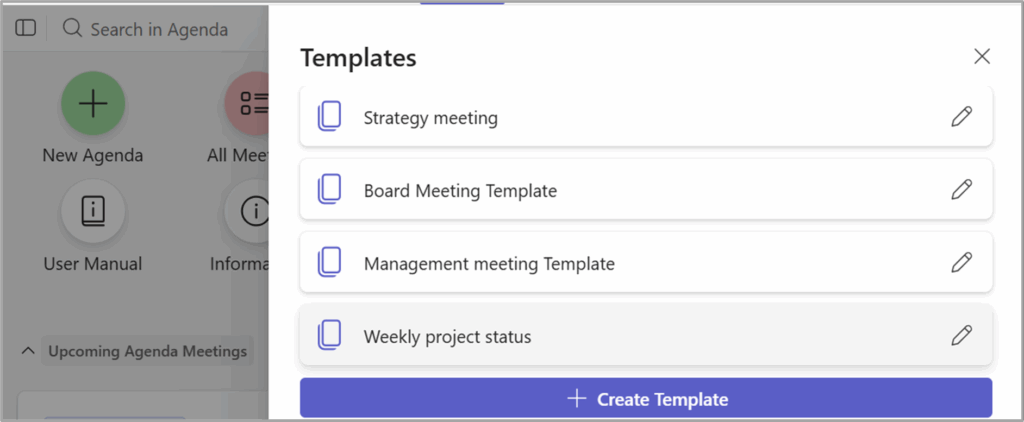
From Agenda Home select Templates

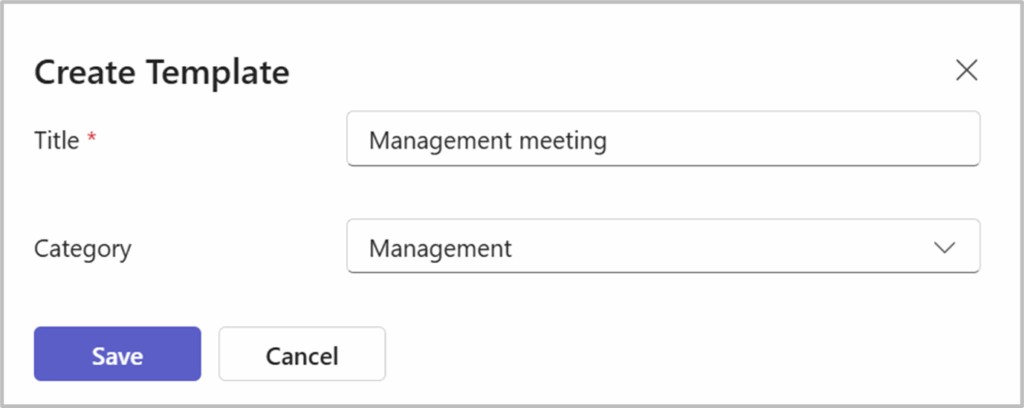
Then, select “Create Template” and give the template a name and add a category (optional).
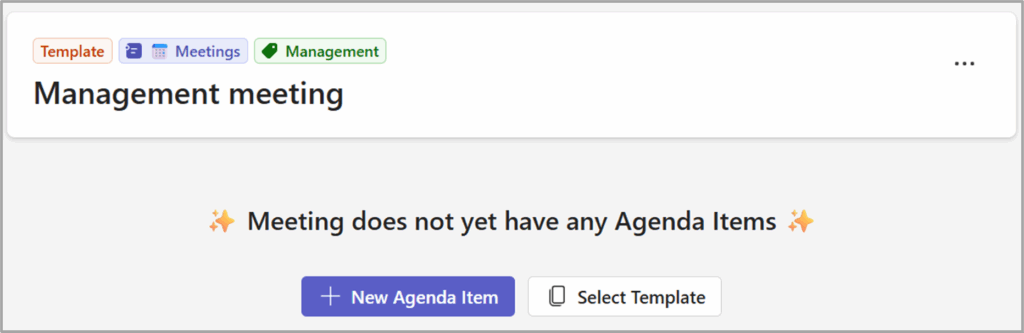
The template will now open, allowing you to add agenda items as you would for a standard meeting. Changes will be saved automatically. For further information on preparing agenda items, please refer to the chapter dedicated to this topic.
It is also possible to add an existing template when creating a new one.
Create a template from an existing meeting #
To create a template from an existing meeting, select the three dot (…) menu in the top of the meeting and “Save as Template”.

Edit a template #
To edit a template, go to Agenda Home, Select Templates and the template you want to edit. Changes will be saved automatically.
Delete a template #
To delete a template, go to Agenda Home, Select Templates and the template you want to delete.
All current agenda items must be deleted before a template can be removed.



