
How to create an Agenda for your Meeting #
Using Agenda in meetings scheduled through Teams or Outlook allows you to benefit from Teams’ solutions for conducting meetings while also taking advantage of the structure provided by Agenda.
First, create the meeting event in your Outlook or Teams Calendar #
To enable team members to create meeting agendas, add the Channel Calendar as a tab and send invitations from there.
Then, to Create a professional meeting agenda: #
1. Navigate to the team and the Agenda App
2. Click on “New Agenda” and navigate to the date to find and select the meeting you want to add a professional meeting agenda.
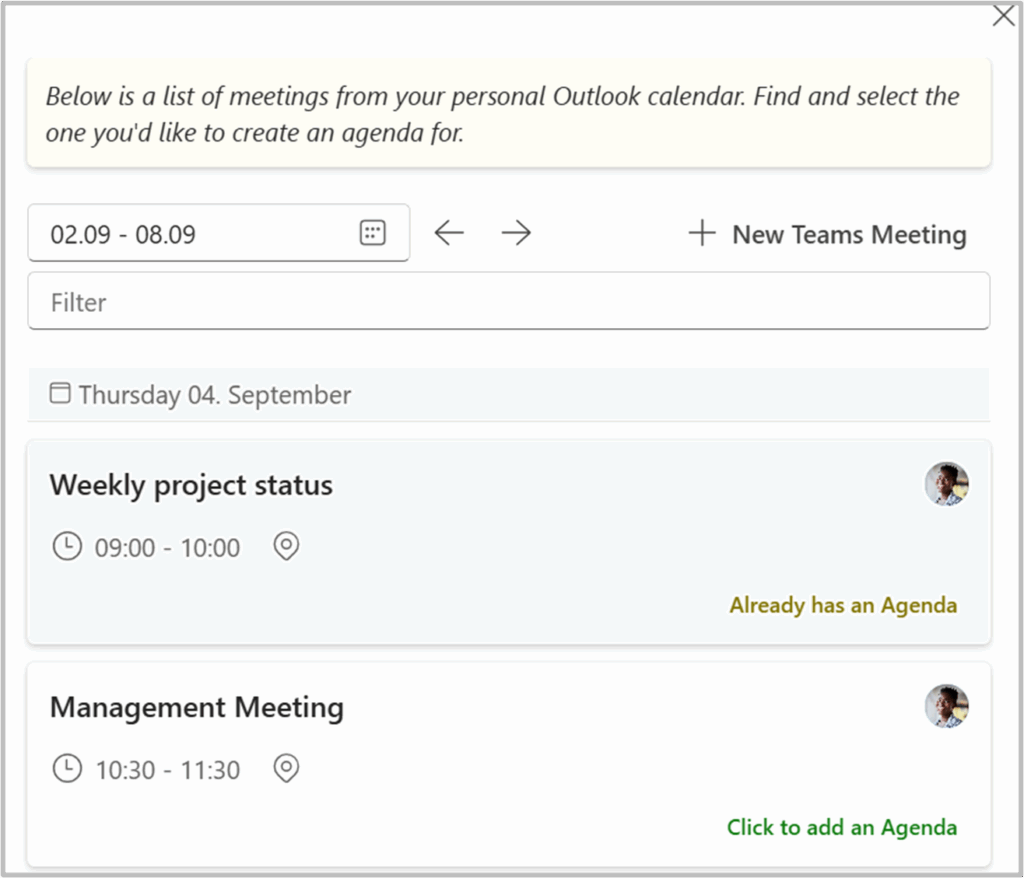
3. Now, the Agenda is ready to use for your meeting!
If you are using the personal app to create an Agenda, you will also be prompted to select the team where the agenda should be saved. You should choose a team that all meeting participants can access, allowing them to view the content easily.
Note: Only the meeting organizer can create a new Agenda to the Teams meeting. Once the meeting organizer has done so, Agenda will become visible in your personal app.
Edit Agenda Details #
Meeting information must be edited in your Teams/Outlook calendar #
To change meeting information like participants, start- and end time, you must go to your calendar and edit the meeting from there.
To edit meeting categories and links for Agenda/Minutes PDF #
Click on the “…” (More Options) button and select “Edit.”
The details you can edit: #
- Category: Edit the Category of the Meeting
- Agenda: Add/Edit the Link to the Agenda PDF (the URL is auto-filled when generating the Agenda as a PDF)
- Minutes: Add/Edit the Link to the Minutes PDF (the URL is auto-filled when generating the Minutes as a PDF)


