
Now you have a meeting and an empty agenda. Next it’s time to prepare the agenda items.
Add agenda items #
Agenda items may be created manually, selected from a meeting template or from a backlog of topics that have not yet been scheduled for a meeting. Further details about templates and the backlog are provided in separate chapters within the knowledge base.
1 Add a new agenda item #
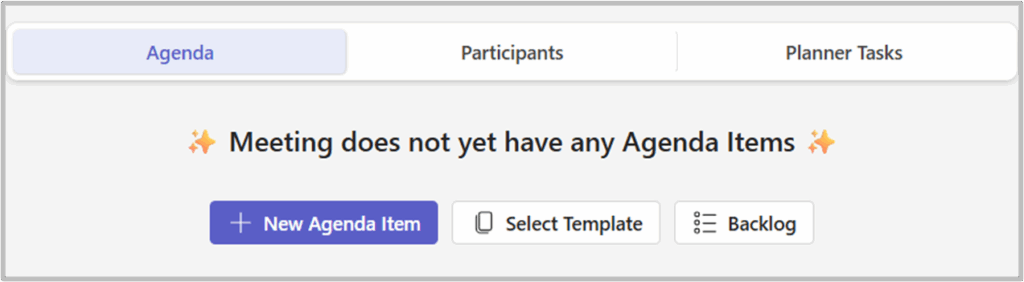
When you click on “New Agenda Item,” a form will open where you can add details:
Title and description #
Provide a clear and concise title for the agenda item.
Write a short description that provides the necessary context for the item.
👉 When copying content from an external source, it is recommended to right-click and choose “Paste as Text Only” to maintain correct formatting.
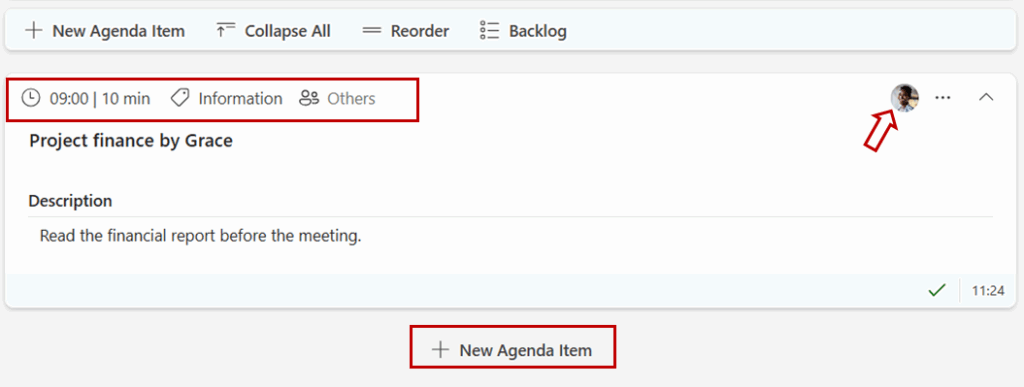
In the item header you can add the following:
- Estimated Time: Specify the estimated time needed for discussing the item.
- Category: Choose a category to improve the organization and overview of agenda items.
- External Participants: Add external participants if needed.
- Responsible Person: Select the person responsible for the agenda item.
- More Options: Click this option to reveal additional settings and possibilities.
Format text #
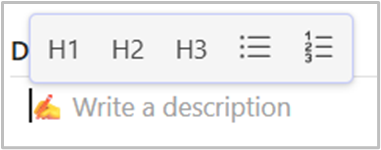
When you start writing in the description, summary, or decision fields, you can enhance the text format with the following options:
- H1, H2, or H3 Headers: Use these to create structured headings for better readability.
- Bullet List: Organize content into simple, unordered lists.
- Numbered List: Use for ordered or sequential items.
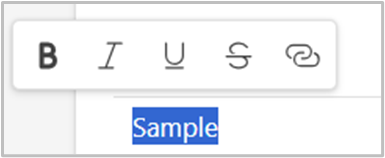
To format specific parts of the text in description, summary, or decision fields, highlight the text you want to format.
Choose from the following options:
- Bold: Make text stand out.
- Italic: Add emphasis or style to text.
- Underline: Highlight important text.
Strikethrough: Indicate removed or completed items.- Link: Add hyperlinks to provide additional context or references.
Add attachments to the Agenda Item #
You can add relevant attachments to each agenda item.
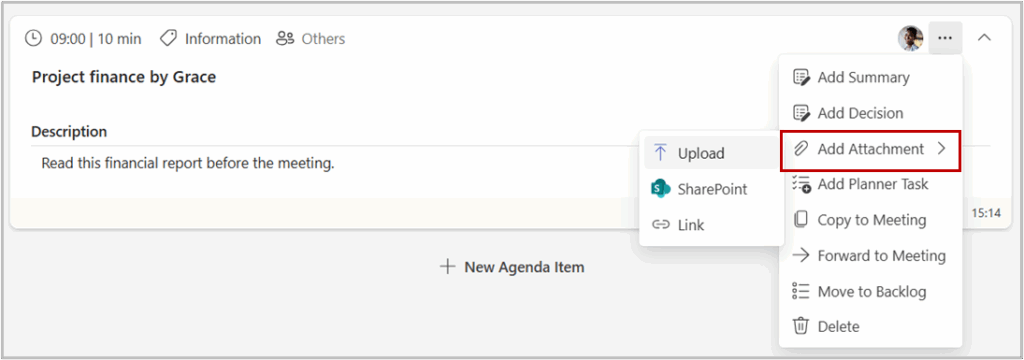
On the agenda item where you want to add an attachment, click on the three dots (…) at the top right of the item. Select “Add Attachment” and choose where you want to retrieve the attachment from:
- Upload: Upload a document from your computer. The document will then be stored in the team’s area and only available to team members.
- SharePoint: Navigate to the desired file in SharePoint. When selecting the file, you can either link to it or copy it into the agenda.
- Link: Add a link to an existing file accessible to all team members.
Attachments make it easier to share supporting documents, ensuring all relevant files are organized and accessible within your agenda.
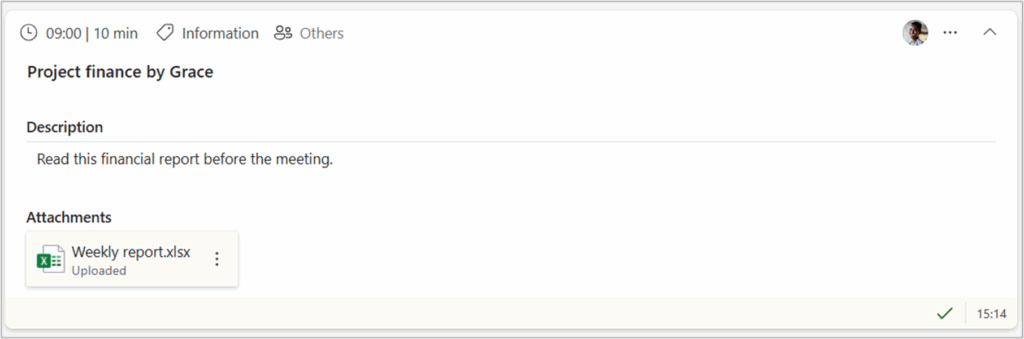
After you add the attachment, it will be visible under «Attachments» section on the agenda item, and in the Attachment tab for the meeting.
Remove an Attachment #
To remove an attachment, click on the three dots to the right of the attachment you want to delete. Then click «Delete» and confirm your choice by clicking «OK».
👉 Uploaded attachments will be deleted from the library as well.
👉 Items linked to the Agenda Item will only have the link removed, not the actual document.
2 Add an agenda item from the Backlog to a meeting. #
In the meeting, click on Backlog in the header of the meeting screen.

- Next, select the Agenda Item you want to link to the meeting from the menu on the right and click ‘Select’.
- The Agenda Item will then be visible in your meeting, and you can edit and reorder it as needed.
3 Select a template #
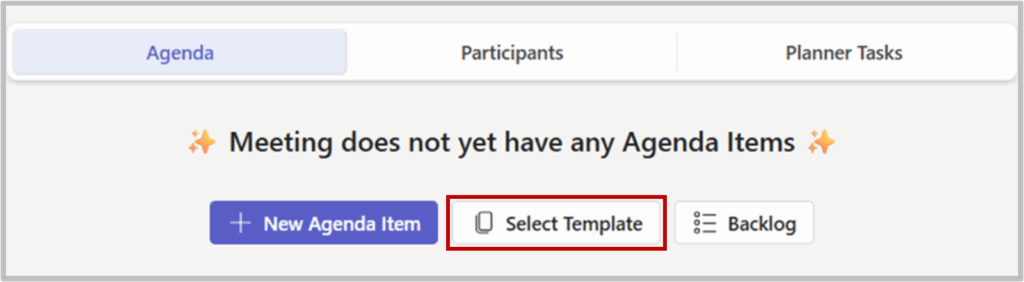
In Agenda you can create templates for the most common meetings, like recurring project meetings, mangement meetings or board meetings. Choose the “Select Template” option to quickstart your planning from one of your templates.
Remove an agenda item from a meeting #
There are two options available for removing an item:
1 – Delete the agenda item #
1 – On the agenda item you want to delete, click on the three dots (…) in the top-right corner.
2 – Select delete, and confirm.
👉 Any uploaded attchments will also be deleted.
2 – Move the agenda item to Backlog #
If you want to remove the item from the meeting you are planning, but you want to keep it for a future meeting, you can move it to the Backlog.
1 – On the agenda item you want to remove, click on the three dots (…) in the top-right corner.
2 – Select «Move to Backlog» from the menu, and confirm.
3 – The Agenda Item will be removed from the meeting; however, it will continue to be accessible in the Backlog.


