Who can Manage Settings? #
👉 Only team owners have access to the settings menu in Agenda.

View meetings for the current channel or from all Agenda meetings in the team #
The “Current Channel Only” option controls whether only meetings associated with Agenda in the current channel are displayed. If this option is disabled, all team Agenda meetings will be visible.

Planner integration #
You can easily integrate Planner into the Agenda app. In settings, you can choose the default option for Planner in Agenda:
- None: Each Planner task created through Agenda can choose freely which Planner Plan and bucket it should be placed in
- Existing: Choose between existing Planner Plans. This option will force all Planner tasks created through Agenda to be placed in this Plan. The user can still choose the bucket.
- New: Create a new Planner Plan through Agenda.

Edit Categories #
Meeting Categories #
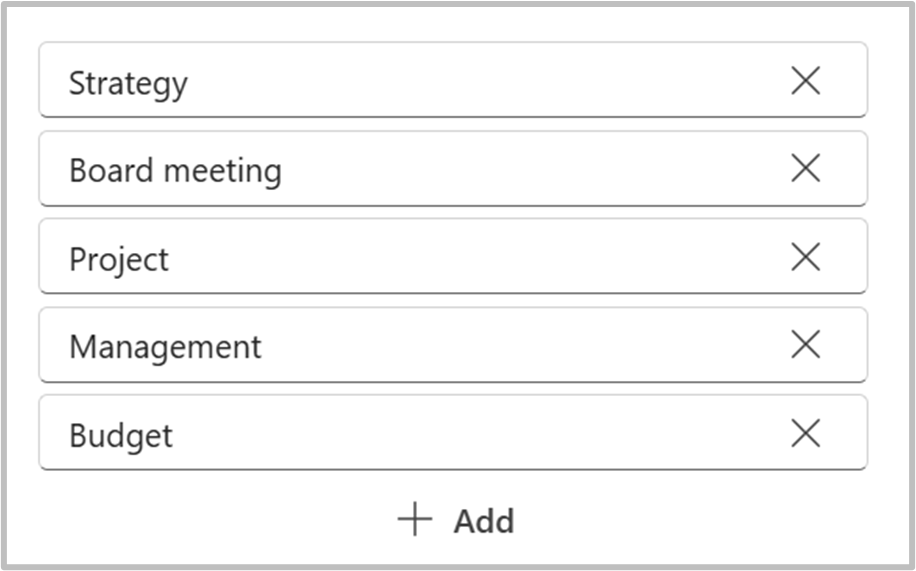
For easier meeting management, labeling each meeting with its category is possible. When adding Agenda to a team for the first time, the categories Management and Project are preset. You can add and remove new categories by either pressing “Add” to add or “X” to remove the category.
Agenda Item Categories #
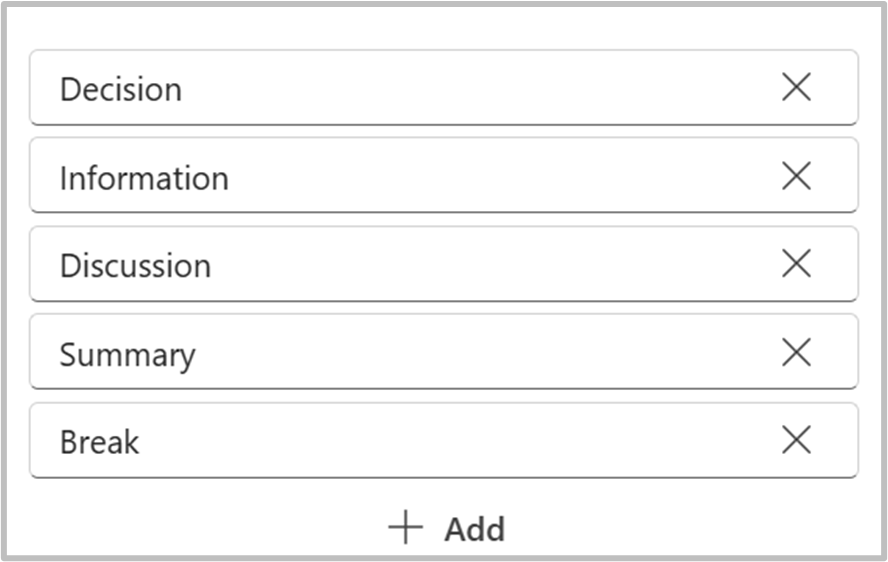
Labeling each Agenda Item with its category is possible for easier meeting item management. When adding Agenda to a team for the first time, the item categories Decision, Discussion, Information and Break are preset.You can add and remove new categories by either pressing “Add” to add or “X” to remove the category.
Change Save Locations for Agenda and Minutes PDF’s #
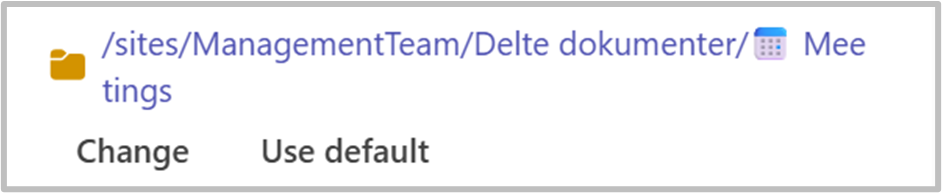
You can change the default location of where Agenda or Minutes PDFs are stored by clicking “Change” and navigating to the desired folder.
Tip! Create “Agenda” and “Minutes” folders in the channel’s Files, then set them as destinations for easy team access.
Custom Destination #
Enabling this allows users to select a different save location when creating Agendas or Minutes each time they export to PDF.

NOTE! Make sure that that the ones who are going to publish the report/minutes also have write access to the library on the intranet.
Add the company logo to the agenda and minutes PDF’s #
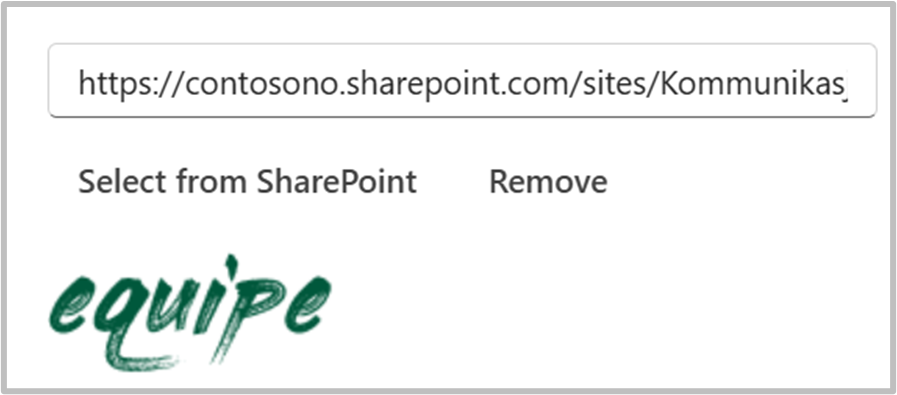
You can add a standard logo that will be placed in the top left corner of agendas and minutes. There are two options for adding the logo:
1 Link: If the desired image is located either in Teams or on a SharePoint site, paste the link to the logo you wish to use, following the exact format as the example below (a standard hyperlink will not work).
2 Teams/SharePoint: Allows you to navigate through the file structure on your SharePoint site and select the logo.